
Two kinds of hotspot.
Opens a card with a title and text. The visitor stays in the same scene and keeps looking around.
Use it for: history, details, credits, prices, anything worth a caption.
Plays a transition and takes the visitor to another scene — a panorama or a walkable 3D world.
Use it for: doorways, paths, “step into 3D”, portals between worlds.
Create a tour
There are two ways in, and building a tour never costs credits.
- From the Tours page — click New tour. You get an empty “Untitled tour”; rename it in the editor's top bar.
- From a result — click Create tour under any finished panorama in the generator, History or the viewer. That panorama becomes scene one. If it already has a 3D world, the world is added as scene two and the two are linked for you.
Add your scenes
Click + Add scene under the scene list. Type a Scene name first, then pick a source.
- Generated panoramas — everything you've made with PanoCraft, one click each.
- Upload panorama — a 2:1 equirectangular JPG, PNG or WebP up to 25 MB, e.g. from a 360° camera. It's kept under Uploaded panoramas for next time.
- Add from URL — paste a public link to an equirectangular image.
- 3D world tab — add a walkable gaussian-splat world. Locked worlds show an Unlock link first.


Name, order and frame each scene
Click a scene in the list to open it. The Scene panel on the right holds its settings.
- Title — shown in the visitor's scene picker and in the transition caption.
- Move up / Move down — the first scene is where the tour starts, and the visitor's arrows follow this order.
- Set entry view — drag (or swipe) to frame what visitors should see first, scroll or pinch to zoom, then click Set entry view under the scene.
Add info hotspots
Info hotspots tell the story. Clicking one opens a card — the visitor stays where they are.
- Click + Info hotspot under the scene. The pointer turns into a crosshair.
- Click the exact spot — a tower, a painting, a window. Press Esc to cancel.
- Write a short Label (shown on the pin) and a Body (shown in the card). Changes save as you type.
- Nudge Yaw° and Pitch° to fine-tune the position, or Delete and place it again.
Link scenes together
Scene links are how visitors move. Clicking one turns the camera towards it, plays the transition and lands them in the target scene. You need at least two scenes first.
- Click + Link to scene, then click where the path continues — a doorway, a staircase, the end of a trail.
- Pick the Target scene. Any direction works: panorama → panorama, panorama → 3D world, world → world.
- Pick a Transition — try all three below.
- Give it a Label that says where it goes: “Into the kitchen”, “Back to the lake”. Then add a link back from the target scene so nobody gets stuck.
Preview as a visitor
Click Visitor preview in the top bar. The panels disappear and hotspots behave exactly as they will for visitors. Click Back to editing to keep working.
- Walk every link at least once and check that each one lands facing somewhere interesting.
- Open every info card and check the text fits — short paragraphs read best on phones.
Share the link
Every tour has a short address like panocraft.si/t/your-tour. Click Open share link in the editor, or Copy link on the Tours page.
- Anyone with the link can open it — no account, no app, on phones and desktops.
- Visitors move with the hotspots or the arrows at the bottom, and can copy the link to pass it on.
- Edits go live as soon as they save. There's nothing to republish.
Make the jump feel like travel.
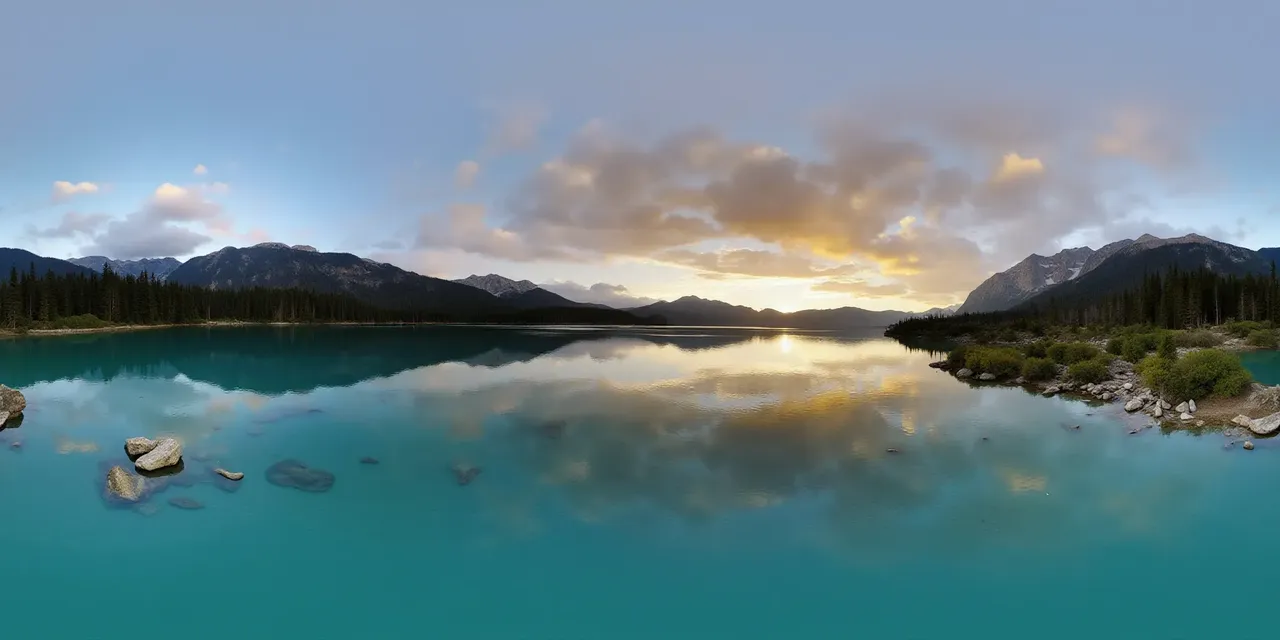
Four links worth setting up.
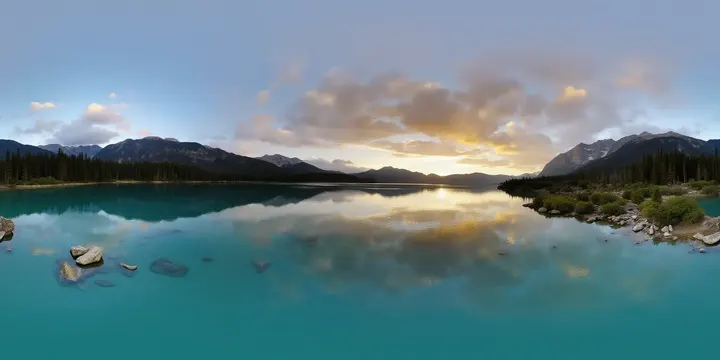
Place the link low, just in front of the viewer, labelled “Step into the 3D world”.
Every world should have a quiet way back to where the visitor came from.
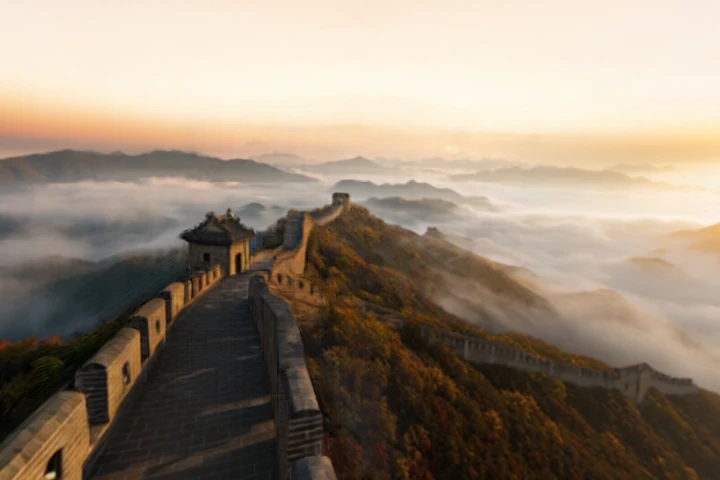
Put it on a landmark that hints at the next place — a gate, a ridge, a doorway.
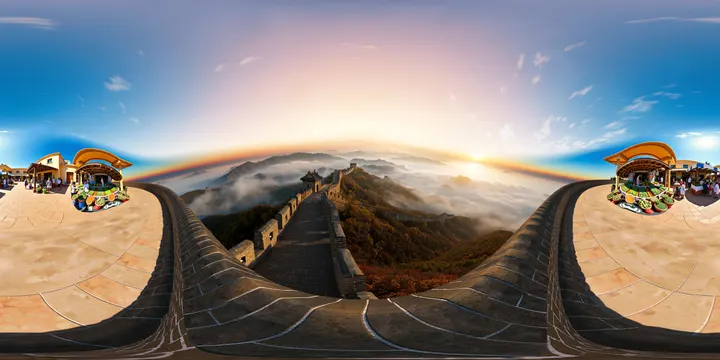
Room to room or viewpoint to viewpoint. Aim it where the path actually goes.
Small things that make a tour feel good.
- 01Point each entry view at the next link, so visitors see where to go the moment they arrive.
- 02Keep labels to two to five words — they sit on top of the scene and need to read on a phone.
- 03Put links where a person would walk, and info pins on the thing they describe.
- 04Use Warp for going deeper, Fade for going back, and Vortex for everything in between.
- 053D worlds take a few seconds to load, so start the tour on a panorama for an instant first frame.
Start from a panorama you've made, or an empty tour.